Control Matrix
The Control Matrix is an interactive and dynamic placemat view that provides an overview of the 14 Domains and 110 Controls, along with their status and other useful information. This page serves the purpose of offering users an in-depth understanding of their current compliance with the Cybersecurity Maturity Model Certification (CMMC), specifically focusing on Met vs. Not Met assessments.
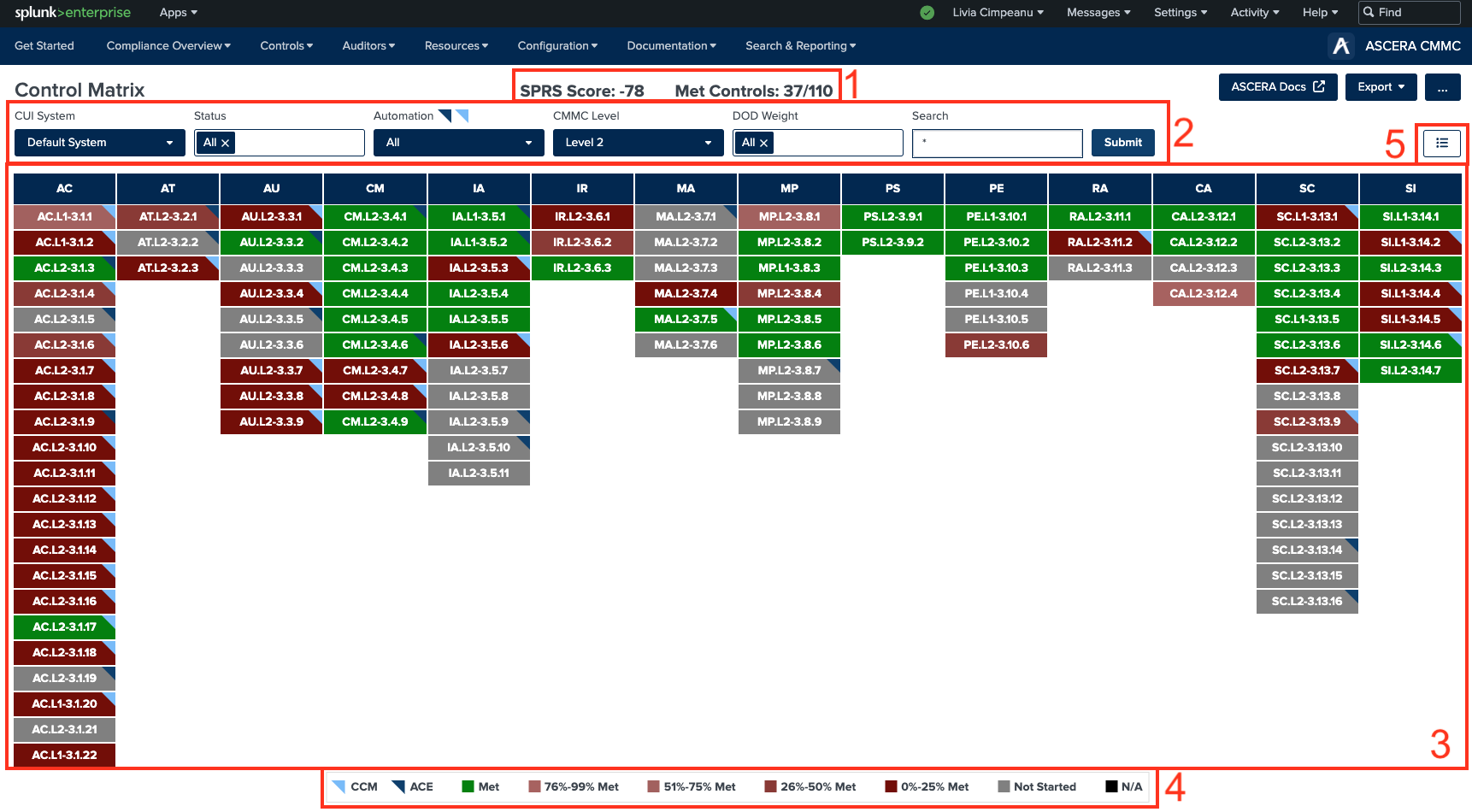
1. SPRS Score and Met Controls count
The first element displayed on the Control Matrix page is the Current SPRS Score. This numeric value represents the grade utilized by the Department of Defense (DoD) to evaluate and assess a supplier's cybersecurity posture. Additionally, the count of met controls enables users to easily track their adherence to Met controls compared to the total number of controls.
2. Filters
Filters are provided as a user-friendly tool to facilitate searches across various key fields crucial for monitoring compliance. The available filters include:
- CUI System - filter the matrix by the particular system that is being monitored for compliance.
- Controls Status - filter the matrix to show just controls that are Met, Not Met, or N/A.
- Automation - filter the matrix to show just the automated or non-automated controls. The filter can also be used to show only the CCM controls.
- CMMC Level - filter the matrix to only show the controls on a selected CMMC level (Level 1 or Level 2).
- DoD Weight - filter the matrix to show just controls that have the selected DoD Weight (1, 3, 5, or N/A).
- Custom Search bar - custom filter the shown controls.
3. Placemat view of domains and controls
This is the main section of the page. Below are outlined functionalities, notes, and actions that can be executed within this context.
Hovering over the column headers reveals the complete name of the domain.
Hovering over a control cell provides a concise list of key attributes pertaining to that control.
Clicking on a control automatically redirects users to the Control Details page for comprehensive information.
4. Legend
A legend located at the bottom of the page elucidates the significance of different colors, representing:
-
Met controls
-
Not Met controls
- 0%-25% Met
- 26%-50% Met
- 51%-75% Met
- 76%-99% Met
-
N/A controls
-
ACE marks
-
CCM marks
5. Toggle button
A toggle button is displayed in the top right corner. Clicking on this button alters the view to a table format, offering an alternative perspective.
The navigation menu, ASCERA logo, and the Options buttons are consistently accessible across all app pages. These features aid users in seamless navigation throughout the app, enabling swift transitions to various sections and granting the ability to personalize screen layouts, dashboards, and saved searches according to individual preferences.