Evidence Management
The Evidence Management page is designed to simplify the complexities of evidence collection for NIST 800-171/CMMC compliance. Its core purpose is to assist you in accessing and managing your compliance-related evidence files efficiently.
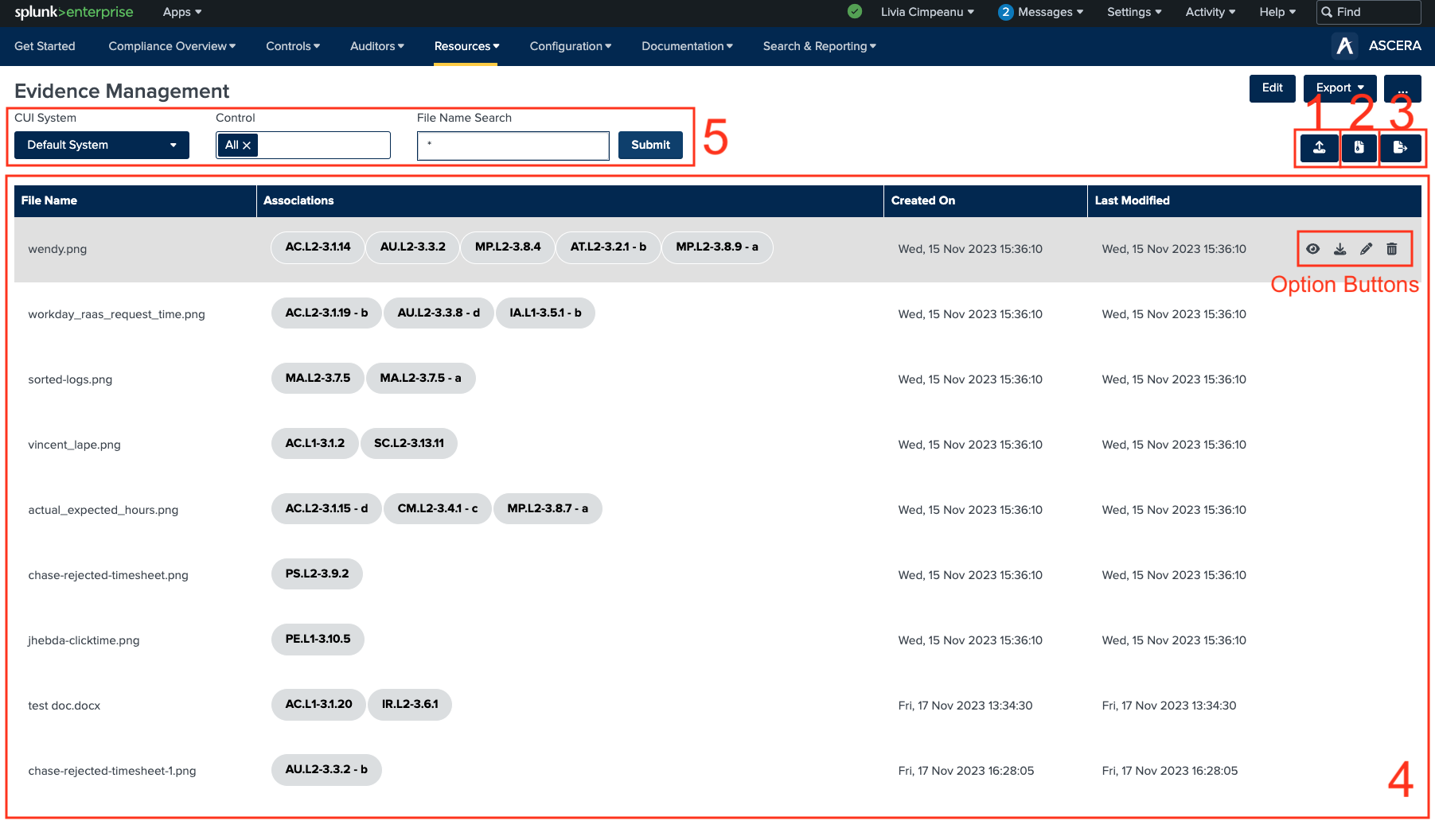
1. Upload and Associate Evidence
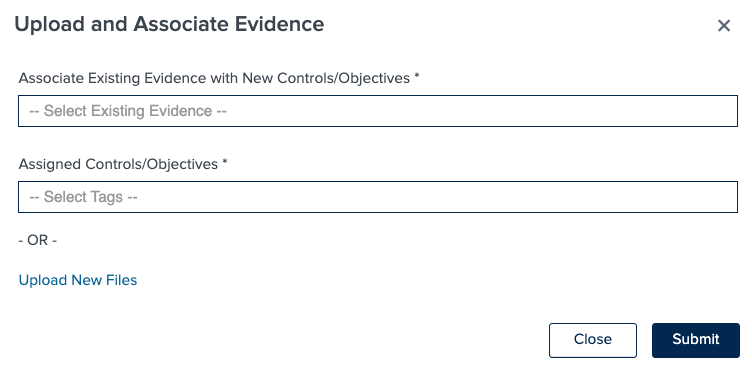
Clicking on the upload button launches the modal designed to facilitate the uploading of evidence files. This modal provides two distinct views: Associate and Upload.
The Associate view is replaced by the Upload view by clicking on the Upload New Files button.
In the Associate view, the user is able to associate existing files with new controls/objectives.
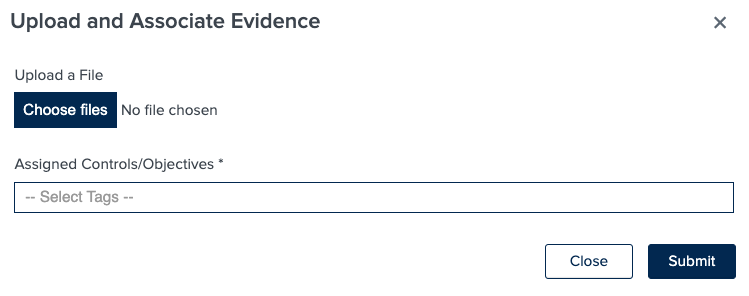
In the Upload view, the user can upload new evidence files and create associations with controls/objectives.
2. Upload Evidence ZIP Archive
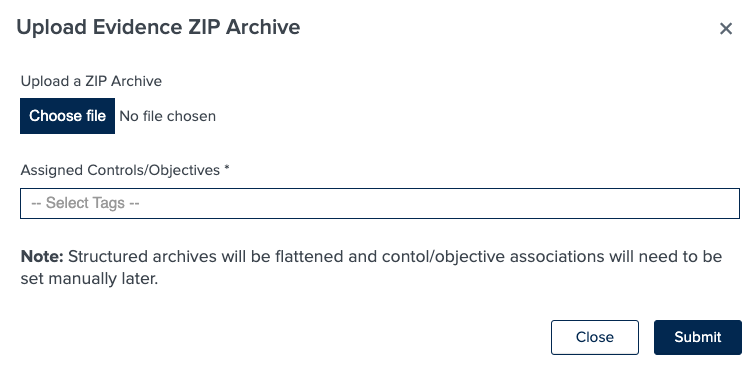
Evidence files can be uploaded in bulk using the upload ZIP archive option. For flat archives, the files are extracted, and the associations are applied populating the table with the selected tags. For structured archives, the files are extracted, flattened, and added to the table; however, associations need to be added manually later on. The tag on these files is ‘No Associations’.
3. Export Filtered Evidence
All the evidence viewable in the table can be exported in a ZIP archive. Once the button is clicked, the export process starts automatically. The exported ZIP file is structured as follows Domain/Control/evidence_file or Domain/Control/Objective/evidence_file.
Evidence cannot be shared between the systems you manage in ASCERA CMMC.
4. Evidence Table
The table displays existing evidence along with corresponding associations, creation dates, and last modification dates.
Hovering over the entries on the table reveals the option buttons.
- View - clicking on this button will open the file in a separate tab if the file is an image or download it if the file is in a different format.
- Download - clicking on this button will download the file.
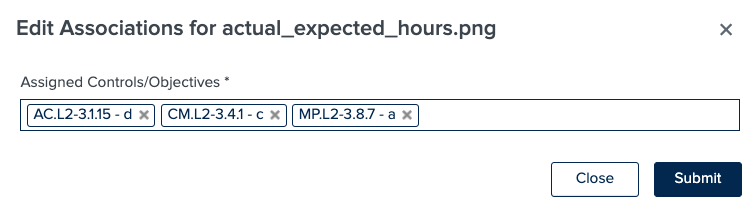
- Edit - clicking on this button will open the Edit Association modal, allowing users to modify associations by removing old tags and adding new ones. Clicking on Submit in the modal applies the change to the association and updates the table.
- Delete - clicking on this button deletes the file. After confirming the deletion of the file, the file and all associations will be deleted.
5. Filters
The page offers a selection of filters to help navigate through the evidence.
- CUI System - helps navigate through different systems and the evidence associated with each system.
- Control - filters the table to show only the evidence files that are associated with the selected control.
- File Name Search - enables users to find a particular file by name.