Objective Notes Management
The Objective Notes Management page in ASCERA CMMC is designed to help you efficiently manage notes related to all objectives across various controls. This page centralizes your note-taking process, enabling you to add, edit, and delete notes from a single location. Additionally, it provides information about the automation status of each objective and the state of saved searches.
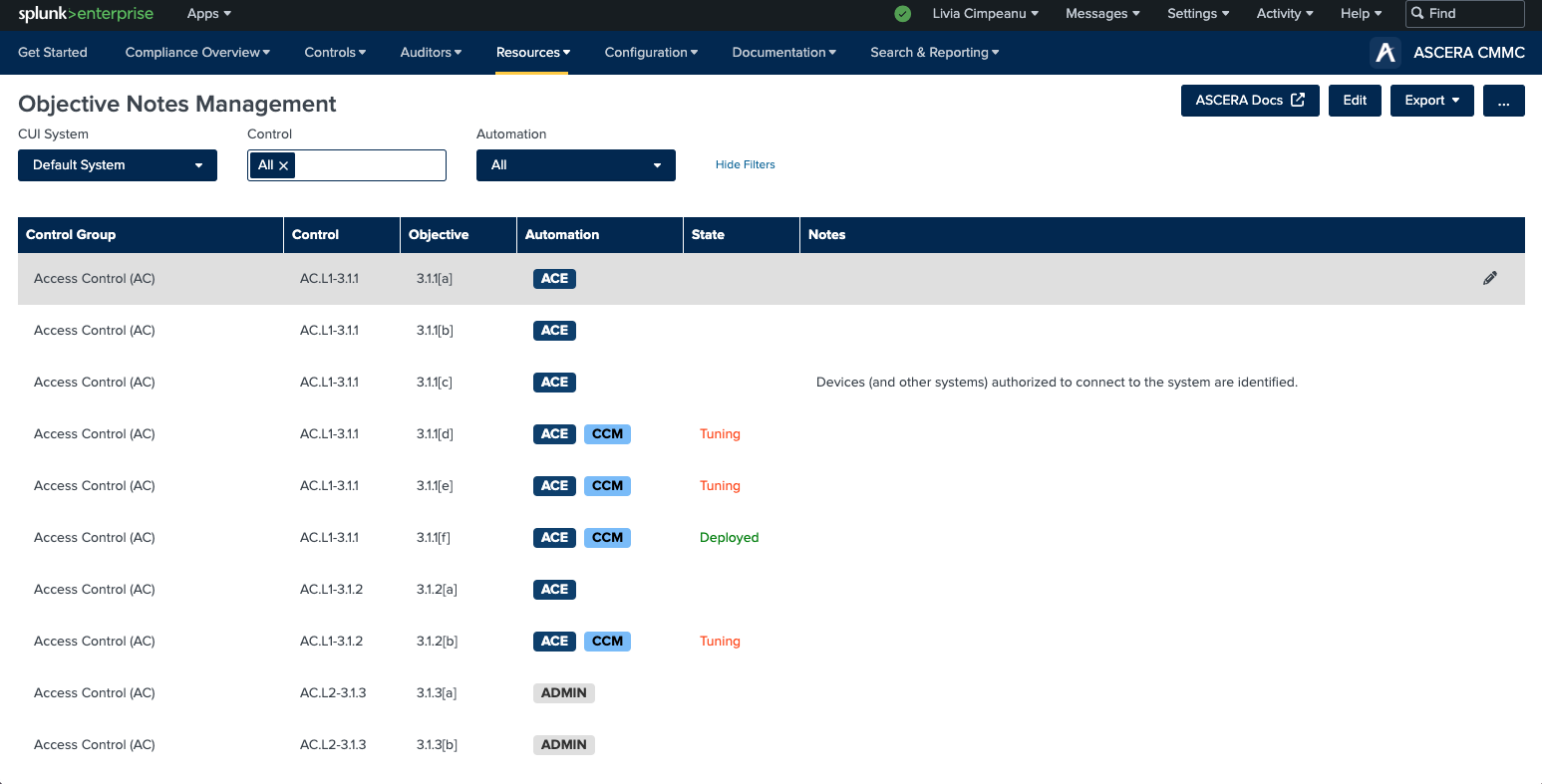
The Objective Notes Management page displays information in a table format with the following headers:
-
Control Group: This column displays the domain or family in CMMC to which the control belongs.
-
Control: Specifies the control to which the objective is related.
-
Objective: Lists the objectives for which notes can be managed.
-
Automation: Indicates the automation status of the objective:
- ACE: Automated Collection of Evidence
- CCM: Continuous Control Monitoring
- ADMIN: Administrative (not automated)
- TECHNICAL: The control is not automated but it is not fully administrative.
-
State: Shows the state of the saved search used to monitor the objective status (specific to CCM).
- Tooltip: Hovering over the state reveals a tooltip with the name of the saved search.
-
Notes: Displays the notes for each objective. This column is empty if no notes are added.
Managing Notes
Adding Notes
- To add a note, hover over the row of the objective you want to annotate. This reveals the edit icon.
- Click on the Edit icon that appears when you hover over the row.
- A modal window will open with a text field where you can type your note.
- Click the Save button to add the note to the table.
- The note will now appear in the Notes column for that objective.
Editing Existing Notes
- Find the objective with the note you wish to edit.
- Hover over the row and click the Edit icon to open the modal window with the existing note.
- Modify the note content in the text field.
- Click Save to update the note in the table.
Deleting Notes
- Find the objective with the note you wish to delete.
- Hover over the row and click the Edit icon to open the modal window.
- Clear the text field and click Save to remove the note from the table.
Searching and Filtering Notes
Filter Options: Apply filters to narrow down the list of notes by:
- Control: Filter the table to display only objectives related to a specific control.
- Automation Status: Filter the table to display only objectives with a specific automation status (ACE, CCM, ADMIN, TECHNICAL).
By utilizing the Objective Notes Management page, you can streamline your note-taking process and enhance the organization of your compliance efforts.