System Management
The System Management page provides a place to manage CUI systems (boundaries) and segregation of CUI data within the app. Creating and defining CUI systems is an essential part of the installation and configuration process as systems are the backbone of the app. All the tools within the app are based on CUI systems.
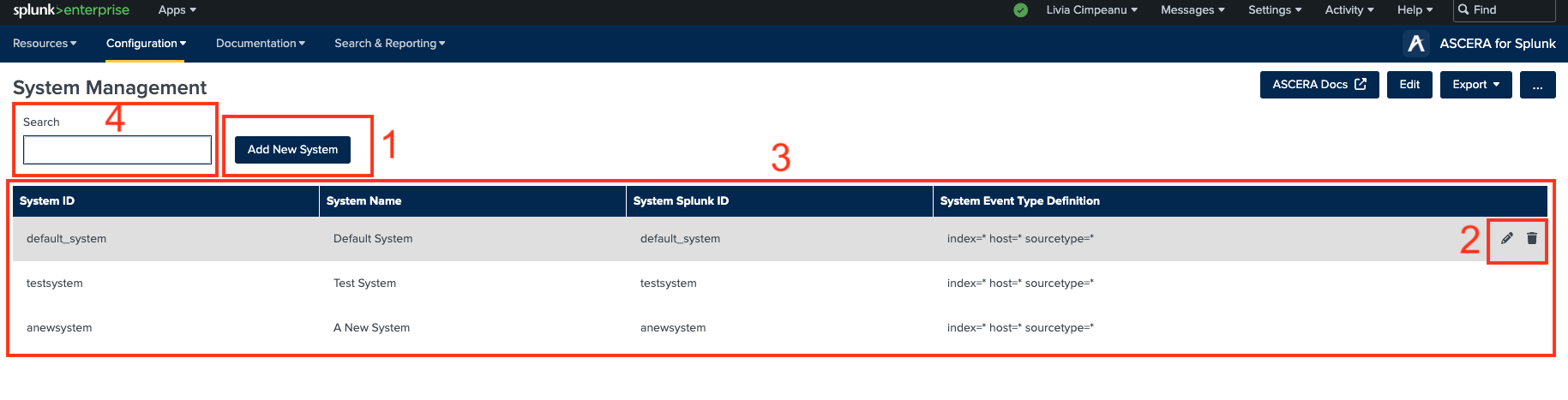
1. Create a new CUI System
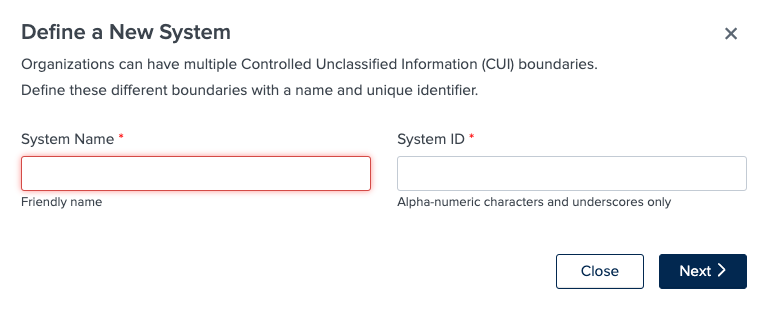
To create a new CUI system, click the 'Add New System' button, which will launch the system creation modal. In this modal, you need to provide a system name and a system ID. The System ID field will automatically populate based on the System Name input but can be overwritten by editing the field. The System ID field can only include alpha-numeric characters and underscores.
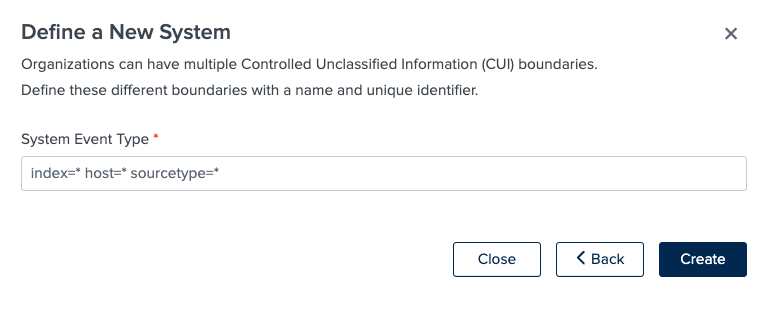
Once the system name and ID are defined, clicking the ‘Next’ button will present the ‘System Event Type’ field where the CUI system’s data boundaries are defined.
An event type is a Splunk-specific knowledge object. More information on Splunk event types is found here: About event types - Splunk Documentation.
Once the system’s event type is defined, clicking the ‘Create’ button will create the new system, and it will be displayed in the table along with other defined systems. The newly created system will also be added to the Splunk data models’ whitelists.
After creating the new system, the Splunk data models that are in use must be rebuilt. For information on rebuilding Splunk data models, visit https://docs.splunk.com/Documentation/Splunk/9.1.1/Knowledge/Managedatamodels#Rebuild_a_summary_for_an_accelerated_data_model.
2. Manage Defined systems
Managing defined systems is straightforward. Hover your cursor over a target system in the table to reveal the system's management options on the right-hand side of the row. Two main actions can be performed:
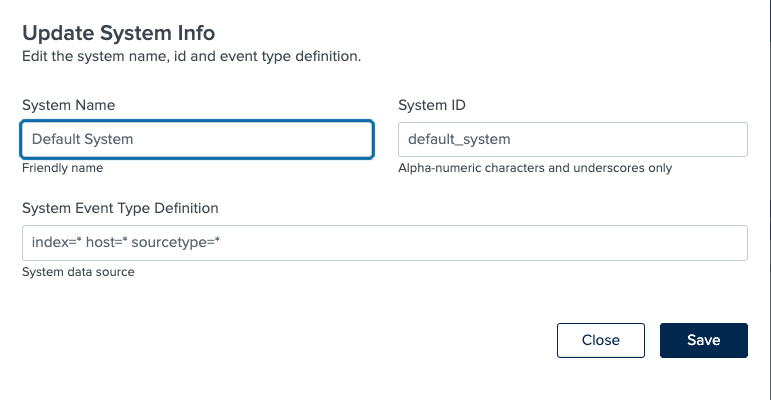
- To edit the system, click on the pencil icon. The ‘Update System Info’ modal will launch and modifications to the System Name, System ID, and System Event Type Definition can be performed there.
- To delete the system, click the trash can icon. A system deletion confirmation is shown, and if confirmed, the deletion of the system will commence. Before the system is deleted, a backup of the app is created, and a download of the backup is initiated.
Please be aware that at least one system must always be present within the application, and it is impossible to delete the last system.
3. System Table
The systems table displays all the systems that have been created within the application. It also provides essential management options for these systems. The table fields include:
- System Name: The user-friendly name of the system.
- System ID: A unique identifier for the system.
- System Splunk ID: An internally immutable system ID used throughout the application.
- System Event Type Definition: Describes the event type that defines the boundaries of the CUI system's data.
4. Search Bar
To search for a particular system, enter the System Name, System ID, or System Splunk ID into the search field and press the Enter button on your keyboard.