All Prereq Checks
The All Prereq Checks dashboard is used as a diagnostic tool to determine if all Splunk assets across all domains & controls are in place so that automatic collection of evidence can work properly. Splunk assets can be macros, tags, products (Splunk apps/add-ons), event types, lookups, fields, and data. This dashboard allows a user to run all prereq checks covering the entirety of the CMMC domains and controls, or to run all prereq checks for a single CMMC domain.
Each CUI System has its own prerequisites. The CUI System can be selected using the system selector at the top of the page.
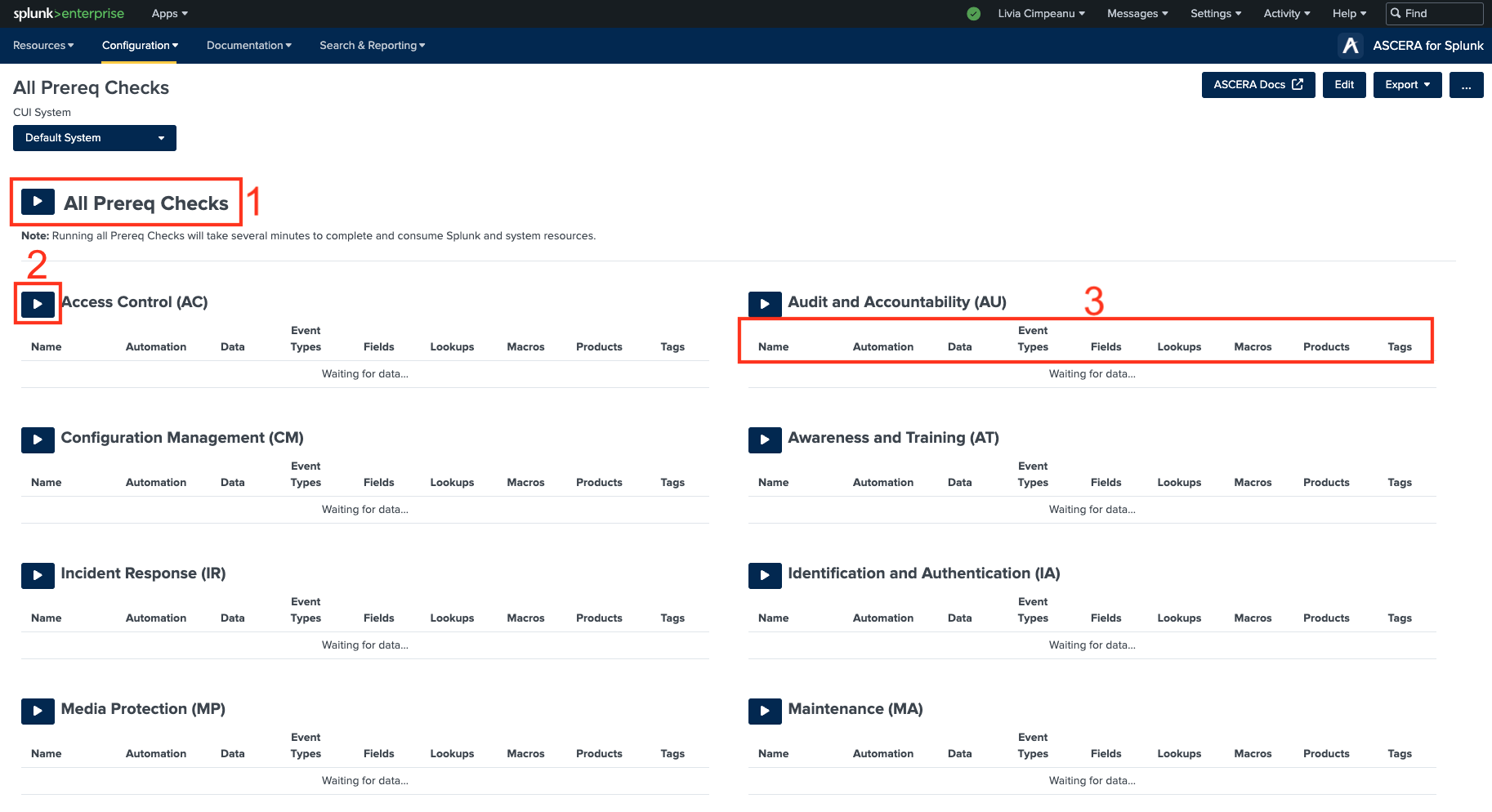
1. Run all checks button
This button is used to kickstart the prereq checks for all domains and controls. This option will take several minutes to complete and will consume Splunk and system resources. Once the checks have been completed, the user will receive the option to export the results to a CSV file. The exported CSV file can be shared with team members or SP6 Professional Services personnel for diagnostic purposes.
2. Run checks for one domain buttons
These buttons are located next to each domain name and table and are used to kickstart the prereq checks for a selected domain. This option will take a few minutes to complete and will consume some Splunk and system resources.
3. Table headers
When prereq checks are complete, the statuses of the assets are displayed within the tables. The fields included in the tables are ACE, Data, Event Types, Fields, Lookups, Macros, Products (Splunk apps/add-ons), and Tags.
- Automation – The Automation field displays whether the control is automates (ACE/CCM) or not (marked as ADMIN). A green checkmark indicates that the control is automated, and a red checkmark indicates that the control is not automated.
- Data – The Data field shows whether the data prerequisite for the control is met or not. A green checkmark indicates that the field is okay, and a red checkmark indicates that the field needs work or modification. A status of ‘N/A’ is displayed if no data is required as a prerequisite for the control.
- Event Types - The Event Types field displays whether event type prerequisites for the control are met or not. A green checkmark indicates that the field is okay, and a red checkmark indicates that the field needs work or modification. A status of ‘N/A’ is displayed if no event types are required as a prerequisite for the control.
- Fields - The Fields field displays whether all data field prerequisites for the control are met or not. A green checkmark indicates that the field is okay, and a red checkmark indicates that the field needs work or modification. A status of ‘N/A’ is displayed if no fields are required as a prerequisite for the control.
- Lookups - The Lookups field displays whether all lookup prerequisites for the control are met or not. A green checkmark indicates that the field is okay, and a red checkmark indicates that the field needs work or modification. A status of ‘N/A’ is displayed if no lookups are required as a prerequisite for the control.
- Macros - The Macros field displays whether all macro prerequisites for the control are met or not. A green checkmark indicates that the field is okay, and a red checkmark indicates that the field needs work or modification. A status of ‘N/A’ is displayed if no macros are required as a prerequisite for the control.
- Tags - The Tags field displays whether all tag prerequisites for the control are met or not. A green checkmark indicates that the field is okay, and a red checkmark indicates that the field needs work or modification. A status of ‘N/A’ is displayed if no tags are required as a prerequisite for the control.
The control names within a domain table are clickable and will load the single Prereq Checks dashboard for the control, displaying detailed information about the prerequisites. For example, if there is a red checkmark in the Macros field for AC.L1-3.1.1, click the AC.L1-3.1.1 link to view which macro prerequisites are met and those that are not met.