Prereq Editor
The Prereq Editor dashboard offers a quick and easy way to add, delete, or modify control prerequisites. Prerequisites are Splunk assets that need to be in place so that automatic collection of evidence can work properly. Splunk assets can be macros, tags, products (Splunk apps/add-ons), event types, lookups, fields, and data.
Each CUI System has its own prerequisites. The CUI System can be selected using the system selector at the top of the page.
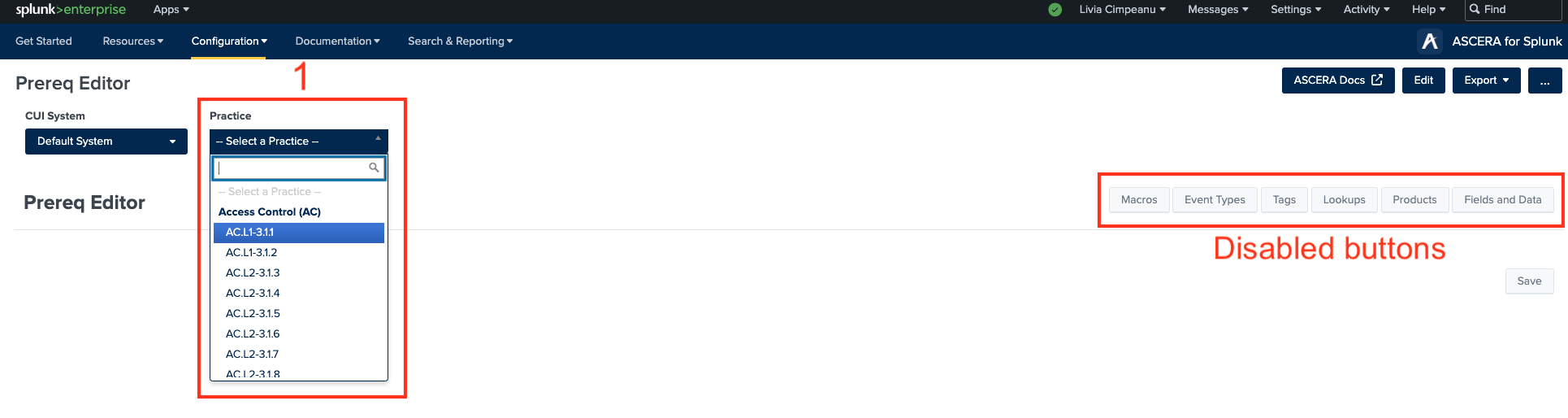
1. Practice selector
To get started, select a control from the Practice dropdown on the top left of the dashboard. The Practice selector also features a text filter to quickly find the desired control from the list.
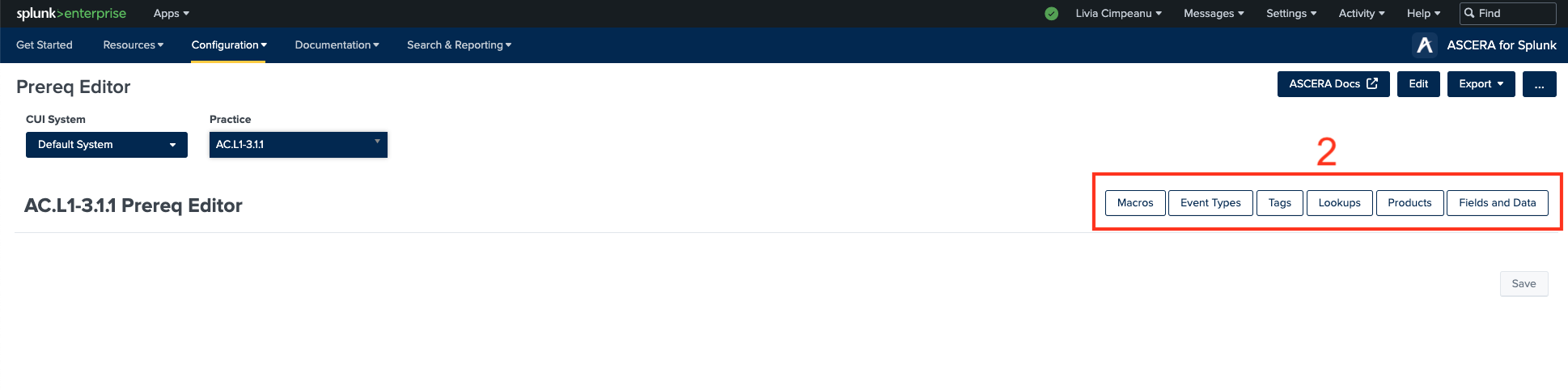
2. Prerequisite category buttons
Once a practice is selected, the prerequisite category buttons on the top right of the dashboard will be enabled. Click on the desired prerequisite category button to display the editor and defined prerequisites.
- Macros – The Macros editor displays all defined macro prerequisites for the selected control. Each macro contains a name and a Splunk search string that is appended to the base search at search time.
- Event Types - The Event Types editor displays all defined event type prerequisites for the selected control. Each event type contains a name and a Splunk search string that is appended to the base search at search time.
- Tags - The Tags editor displays all defined tag prerequisites for the selected control. Each tag contains a name and a Splunk search string that is appended to the base search at search time.
- Lookups – The Lookups editor displays all defined lookup prerequisites for the selected control. Lookups are divided into 2 categories for the editor: Files (CSVs) and KV Stores. Each lookup contains a name and a Splunk search string that is appended to the base search at search time.
- Products - The Products (Splunk apps/add-ons) editor displays all defined product prerequisites for the selected control. Each product contains a name and a Splunk search string that is appended to the base search at search time.
- Fields and Data – The Fields and Data editor displays all defined field and data group prerequisites for the selected control. A field and data group consists of a search and a list of fields that should be present when the search executes. A control can have unlimited fields and data groups. Select the desired group by clicking the corresponding tab beneath the Fields and Data heading. The active group is indicated by a blue underline.
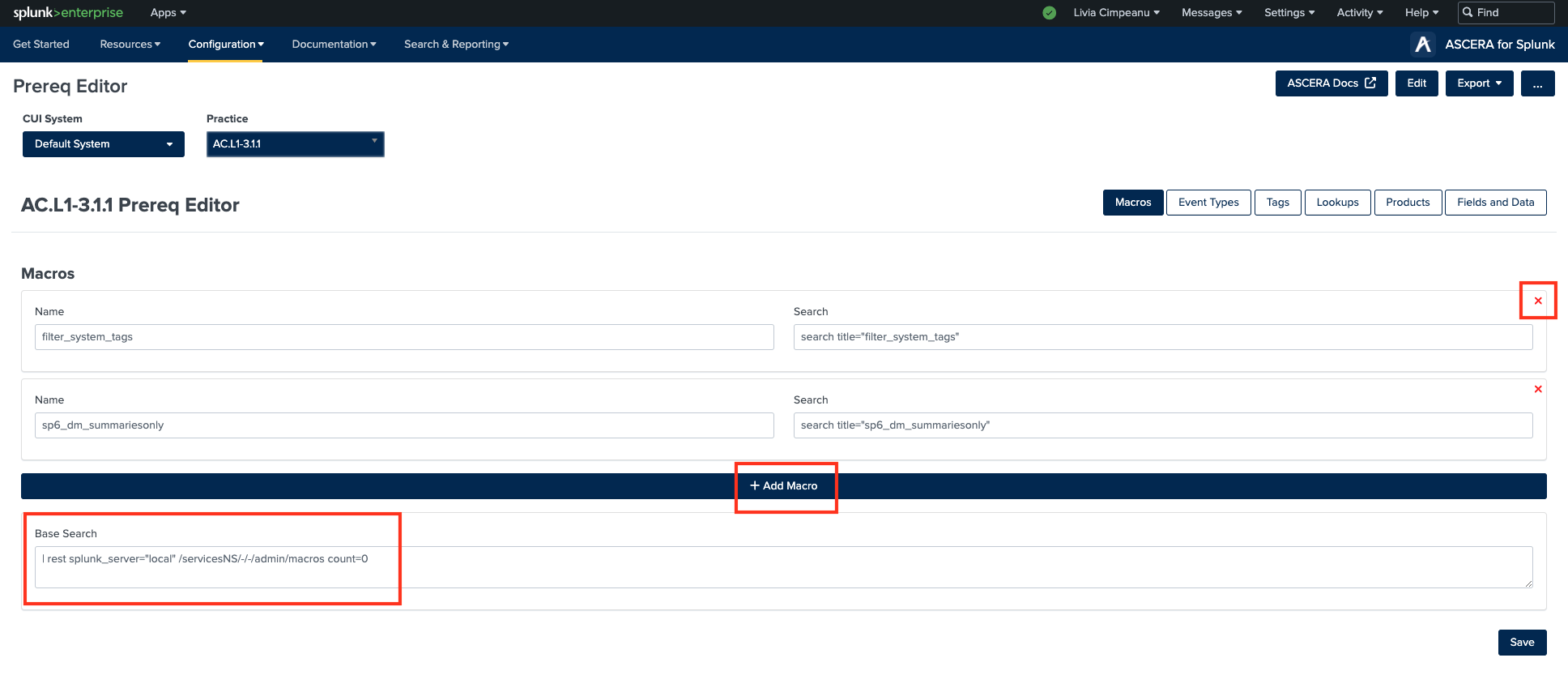
All prerequisites can be modified, created, or deleted.
- Modify - Any prerequisite can be modified by updating the text for the desired field and using the Save button on the bottom right of the dashboard.
- Create - To create a prerequisite, click the Add button (the Add button is tailored for each category of prerequisites). A new, blank container will be appended and the new prerequisite can be defined by entering a name and Splunk search string. To save, click the Save button on the bottom right of the dashboard.
- Delete – To delete a prerequisite, click the red X icon on the top right of the desired container. This action will permanently remove the macro from the control’s prerequisites. To save, click the Save button on the bottom right of the dashboard.
The base search container for any prerequisite can be found below the Add button. The base search string can be modified by updating the text within the ‘Base Search’ container to the desired base search string. For the changes to be applied the user needs to click the Save button.