Prereq Checks
The Prereq Checks dashboard is an essential component of your Splunk control management toolkit. It serves as a diagnostic tool, helping to determine if all Splunk assets for a single control are in place so that automatic collection of evidence can work properly. Splunk assets can be macros, tags, products (apps/add-ons), event types, lookups, fields, and data. Ensuring these prerequisites are met is vital for the proper functioning of automatic evidence collection.
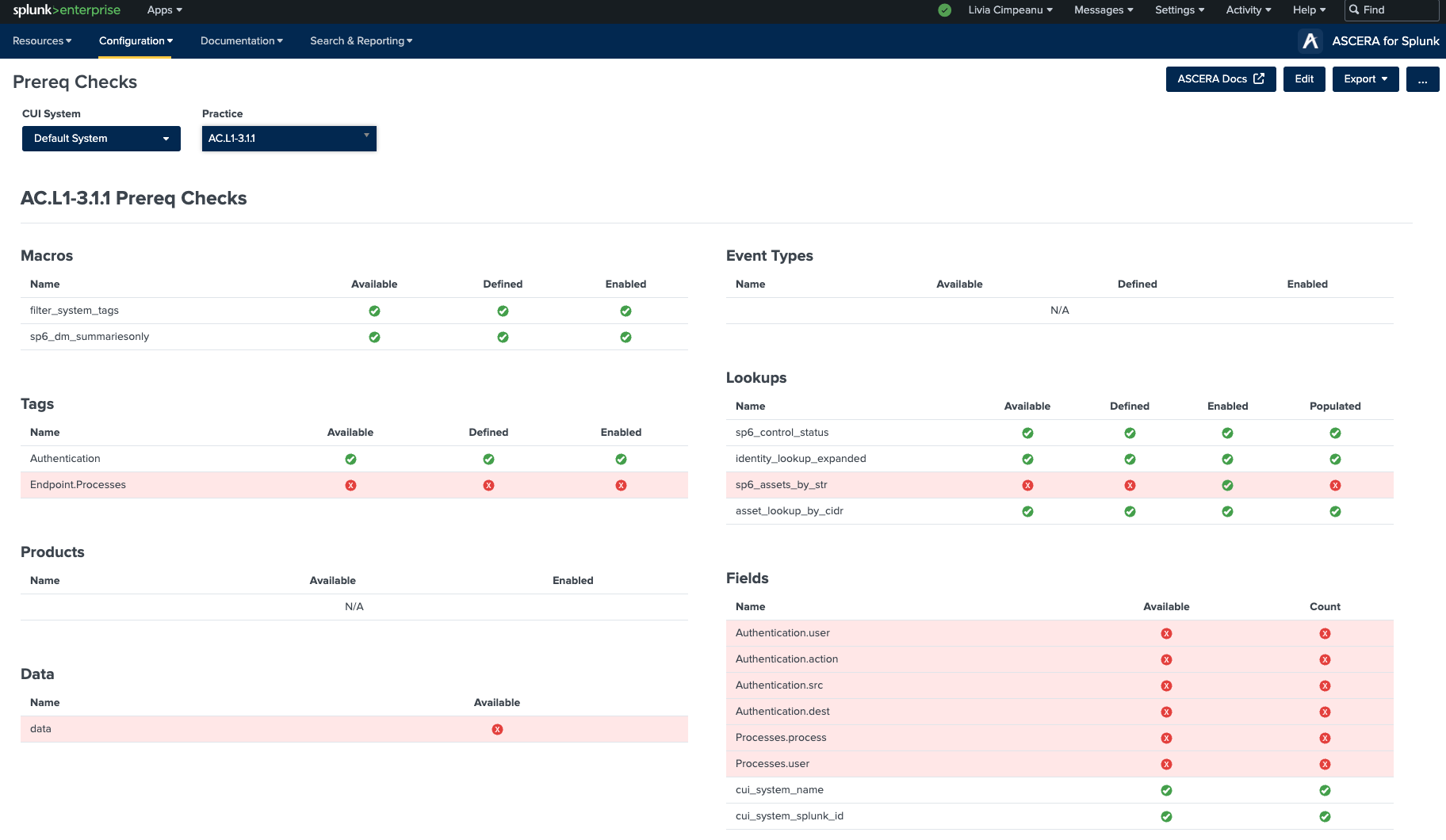
A control can be selected using the Practice dropdown that can be found in the top right of the dashboard. This will automatically start the prereq checks execution. The Practice selector also features a text filter to quickly find the desired control from the list.
Each CUI System has its own prerequisites. The CUI System can be selected using the system selector at the top of the page.
Macros – The Macros table displays all macro prerequisites for the selected control. Fields included are Name, Available, Defined, and Enabled. A green checkmark indicates that the field passed, and a red checkmark indicates that the field needs work or modification.
Tags – The Tags table displays all tag prerequisites for the selected control. Fields included are Name, Available, Defined, and Enabled. A green checkmark indicates that the field passed, and a red checkmark indicates that the field needs work or modification.
Products – The Products table displays all product (Splunk app or add-on) prerequisites for the selected control. Fields included are Name, Available, and Enabled. A green checkmark indicates that the field passed, and a red checkmark indicates that the field needs work or modification.
Data – The Data table displays data prerequisites for the selected control. Fields included are Name and Available. A green checkmark indicates that the field passed, and a red checkmark indicates that the field needs work or modification.
Event Types – The Event Types table displays all event type prerequisites for the selected control. Included fields are Name, Available, Defined, and Enabled. A green checkmark indicates that the field passed, and a red checkmark indicates that the field needs work or modification.
Lookups – The Lookups table displays all lookup prerequisites for the selected control. Fields included are Name, Available, Defined, Enabled, and Populated. A green checkmark indicates that the field passed, and a red checkmark indicates that the field needs work or modification.
Fields – The Fields table displays all data field prerequisites for the selected control. Included fields are Name, Available, and Count. A green checkmark indicates that the field passed, and a red checkmark indicates that the field needs work or modification.